Maps & Floor Plans
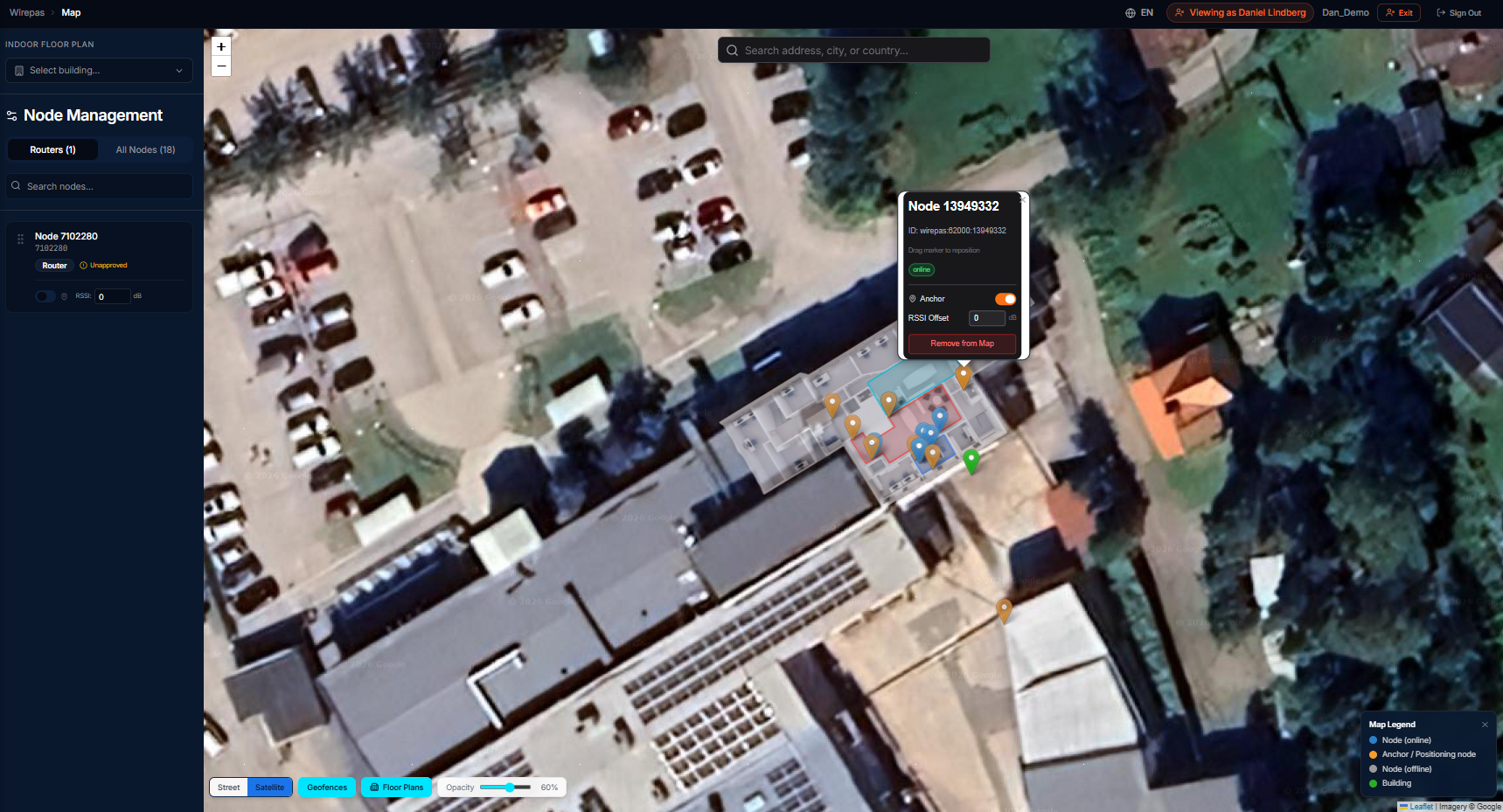 A floor plan with asset positions and zone overlay.
TagFinder uses a hierarchical site model: Buildings > Floors > Zones (Geofences). This section explains how to set up your site for indoor positioning and zone-based tracking.
Site Model overview
Go to Site Model in the sidebar to see a summary of your buildings, floors, and geofences.
Buildings
Creating a building
- Go to Site Model > Buildings
- Click Create Building
- Fill in:
- Name — e.g., "Warehouse A"
- Address — street address (optional, for reference)
- Coordinates — latitude and longitude of the building (used for map positioning)
- Click Save
Managing buildings
From the buildings list, you can:
- View building details and its floors
- Edit building name, address, or coordinates
- Delete a building (this removes all its floors and geofences)
Floor plans
Each building can have multiple floors. Each floor can have a floor plan image that enables visual positioning of assets.
Adding a floor
- Open a building
- Click Create Floor
- Enter the floor name and number (e.g., "Ground Floor", floor 0)
- Click Save
Uploading a floor plan
- Open the floor you want to edit
- Click Upload Floor Plan
- Select a PNG or JPG image of your floor plan
- The image is stored and displayed as a map overlay
Tip
Use a clean, high-contrast floor plan image. Architectural drawings work well. Recommended resolution: at least 2000px wide for large buildings.
Calibrating a floor plan
Calibration maps pixel coordinates on your floor plan image to real-world meter coordinates. This is required for accurate indoor positioning.
- Open the floor and click Calibrate
- Define two reference points:
- Click a point on the floor plan image and enter its real-world coordinates (x, y in meters)
- Repeat for a second point — choose points far apart for best accuracy
- The system computes the pixels-per-meter ratio and rotation
- Click Save Calibration
After calibration, tag positions from the Wirepas mesh are plotted correctly on the floor plan.
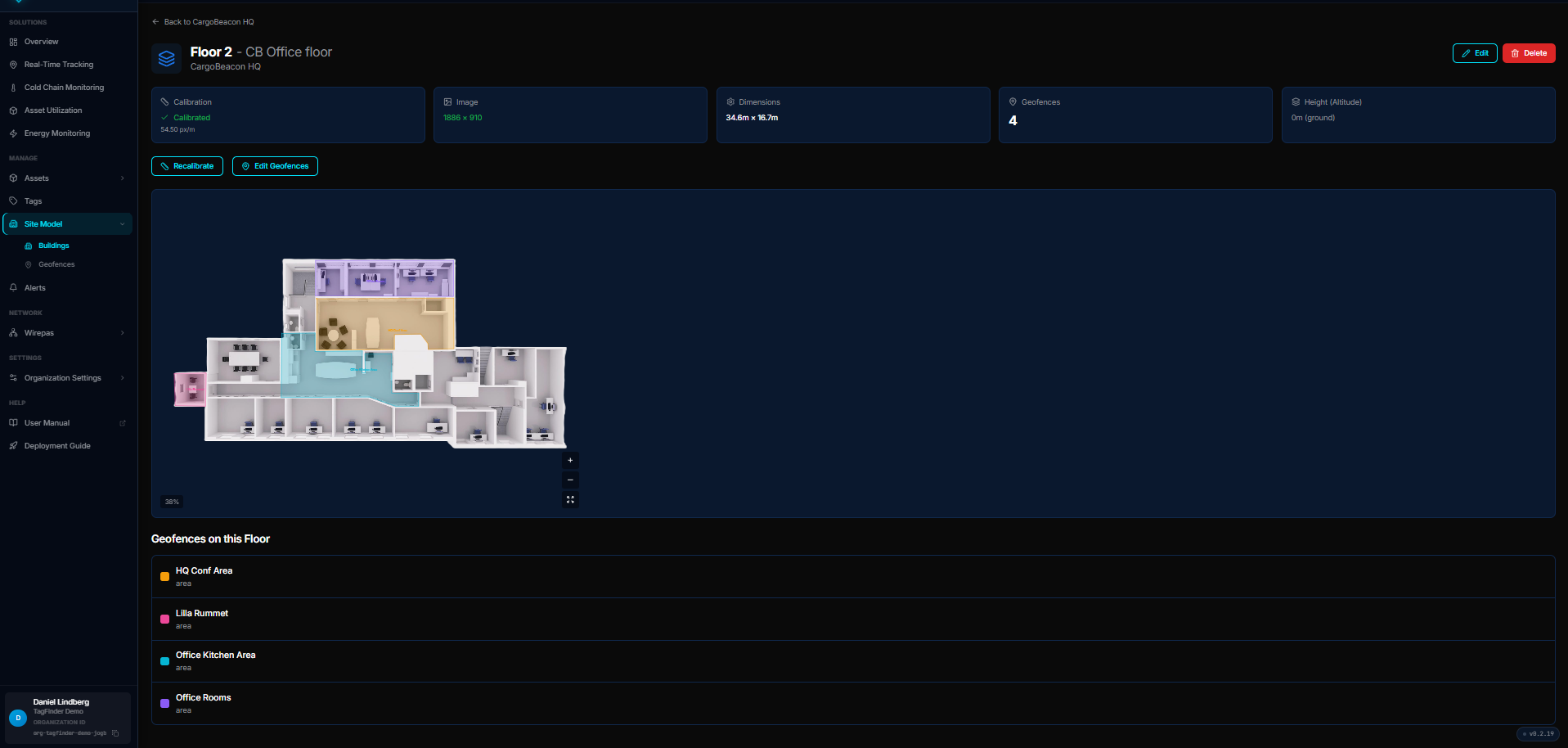 A calibrated floor: pixels per meter, image size, real-world dimensions, and the geofences drawn on it.
Geofences (Zones)
Geofences are named areas that can trigger alerts when assets enter or exit. They can be indoor (on a floor plan) or outdoor (on the map).
Types
| Type | Use case |
|---|---|
area |
General-purpose zone |
room |
Room within a building |
dock |
Loading dock |
aisle |
Warehouse aisle |
rack |
Storage rack |
building |
Entire building footprint |
floor |
Entire floor |
Creating an indoor geofence
- Go to Site Model > [Building] > [Floor] > Geofences
- Click Create Geofence
- Enter a name (e.g., "Cold Room A") and select a type
- Draw the zone boundary on the floor plan by clicking polygon points
- Choose a color for visual identification
- Click Save
Creating an outdoor geofence
- Go to Geofences in the sidebar
- Click Create Geofence
- Select Outdoor
- Click points on the map to define the boundary
- Enter a name and type
- Click Save
Managing geofences
From the geofences list:
- Search by name
- Filter by category (Indoor / Outdoor / All)
- Edit boundaries, name, or type
- Delete a geofence
Warning
Deleting a geofence also removes any alert rules that reference it. Check your alerts before deleting.
How positioning works
- Wirepas mesh tags report their position to the mesh network
- The system resolves tag positions using anchor node coordinates
- Positions are mapped to the calibrated floor plan
- Zone membership is computed by checking if the position falls within any geofence polygon
- If the tag enters or exits a zone with an active alert rule, a notification is sent