Real-Time Tracking
Location: Dashboards → Real-Time Tracking
See all your assets on a live map with their current positions, movement trails, and zone information.
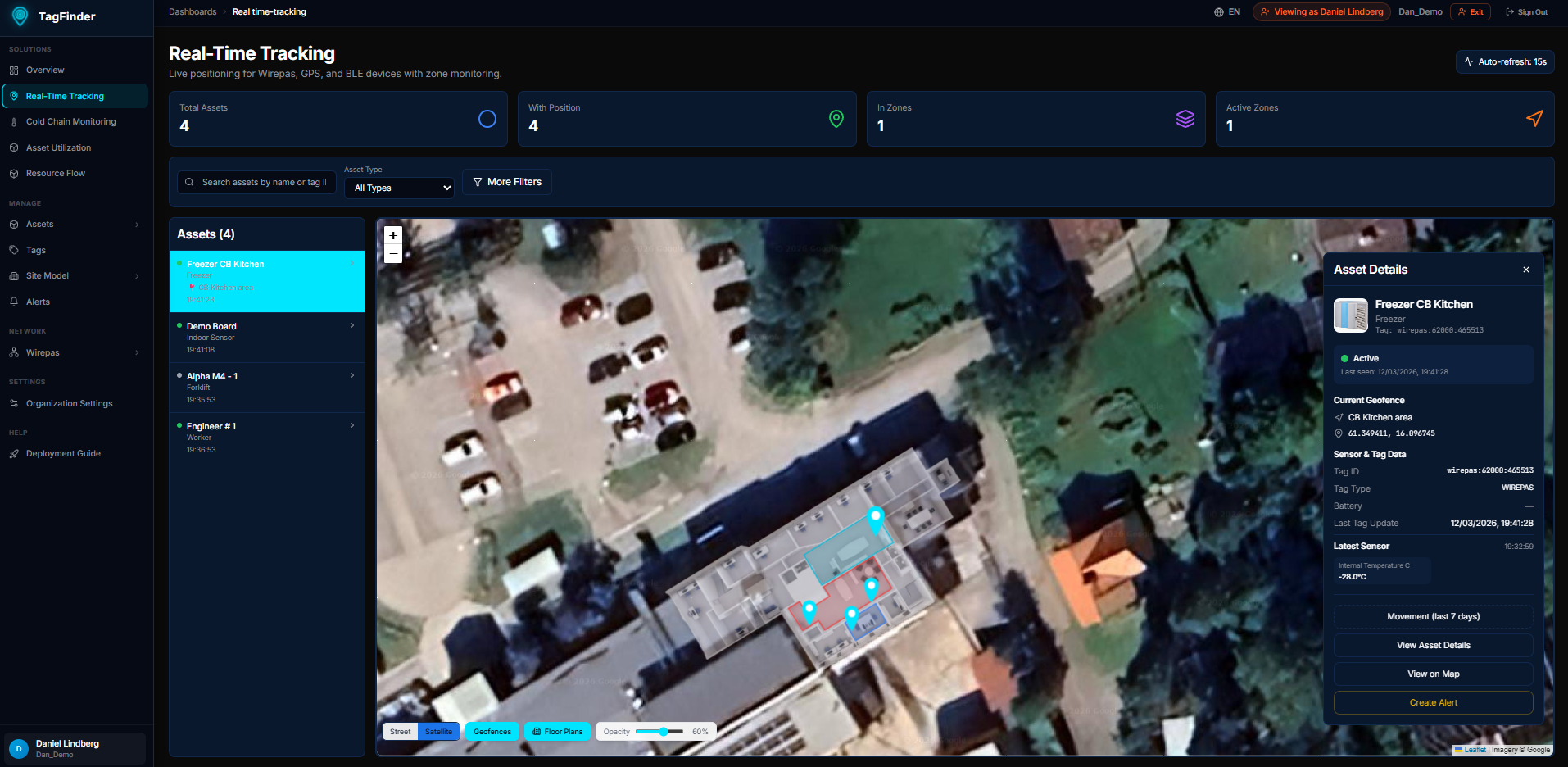 The real-time tracking map showing asset pins and movement trails.
Map View
The main area is an interactive map showing asset positions:
- Asset pins — each asset with a known position appears as a colored pin
- Color coding — pins are colored by asset type for quick identification
- Clustering — at lower zoom levels, nearby pins group together with a count badge. Zoom in to separate them.
- Zoom controls — use mouse wheel, pinch, or the +/- buttons
- Last seen — hover over a pin to see when the position was last reported
Indoor vs Outdoor
- Indoor — positions from Wirepas mesh triangulation, shown on floor plans
- Outdoor — GPS-based positions shown on the map
Asset Sidebar
The left panel lists all assets with positions:
- Asset name — click to center the map on that asset
- Status — last-seen timestamp and zone/building
- Search — type to filter the list by name
- Asset type badges — visual tags showing equipment category
Selected Asset Panel
Click an asset (on the map or in the sidebar) to see details:
- Current position — coordinates or building/floor/zone name
- Last update — when the position was last received
- Asset metadata — type, associated tags, and custom data
- Movement analytics — button that opens the full movement history for this asset
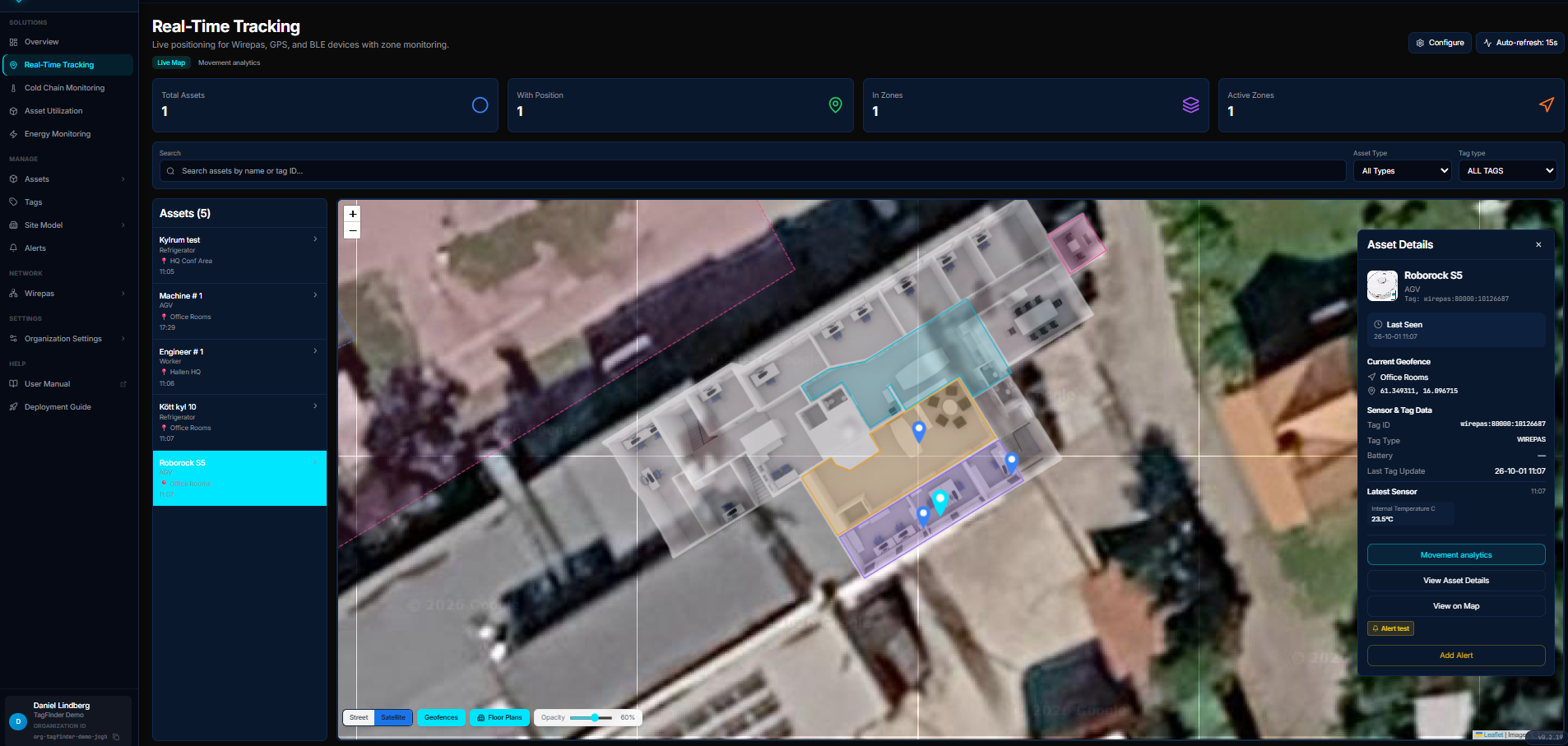 Clicking an asset opens its panel with the current zone, sensor values, and the way on to Movement Analytics.
Movement Analytics
Click Movement analytics on a selected asset — or the tab at the top of the page — to see where the asset has been over the last day or week: the path it took, a heat map of where it spent its time, dwell points, and time per zone.
See Movement Analytics for the full guide.
Filters
| Filter | Effect |
|---|---|
| Time range | How far back to show positions |
| Asset type | Filter by one or more asset types |
| Search | Find assets by name |
Assets not showing on the map?
Assets appear only if they have at least one position report. Check the Tags page to verify the tag is active and has reported data. New tags may take a few minutes to appear after deployment.
How Positions Are Determined
TagFinder uses Wirepas mesh triangulation for indoor positioning:
- Tags broadcast to nearby anchor nodes (fixed reference points on the floor)
- Anchors report signal strength (RSSI) to the gateway
- The system triangulates the tag's position based on multiple anchor readings
- Positions are updated every 15–60 seconds depending on tag configuration
For outdoor tracking, GPS or cellular positioning is used when available.
Data Sources
| Data | Source |
|---|---|
| Positions | rtls_positions table — latest per tag |
| Movement history | Historical rtls_positions entries |
| Zone detection | Point-in-polygon against geofence boundaries |
| Map tiles | OpenStreetMap (outdoor) or uploaded floor plans (indoor) |